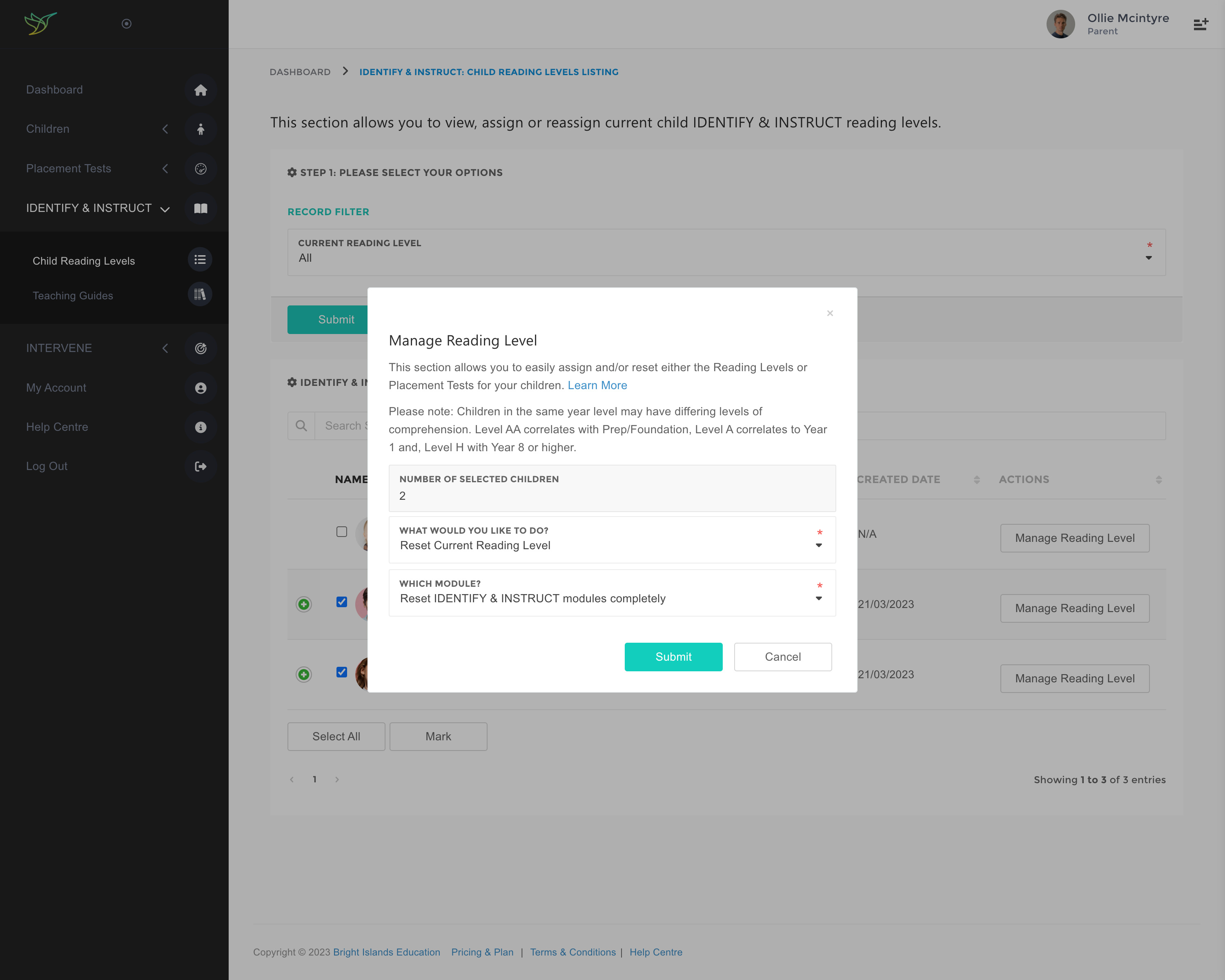
Reset the Reading Level (IDENTIFY & INSTRUCT Modules)
Reset the IDENTIFY Assessment and/or INSTRUCT Reading Level
- Navigate to the main menu and click on the IDENTIFY & INSTRUCT section.
- Click on the Child Reading Levels link.
- Choose All option and Current Reading Level.
- Click the Submit button.
- To reset a test, select the checkbox next to a child's details or select all children by clicking the Select All button, and then click the Mark button. Please ensure that you have the correct number of children selected.
- In the What Would You Like to Do? field, choose Reset Current Reading Level if you would like to reset a test or lesson of the current reading level.
- Choose the modules you would like to reset in the Which Modules? field.
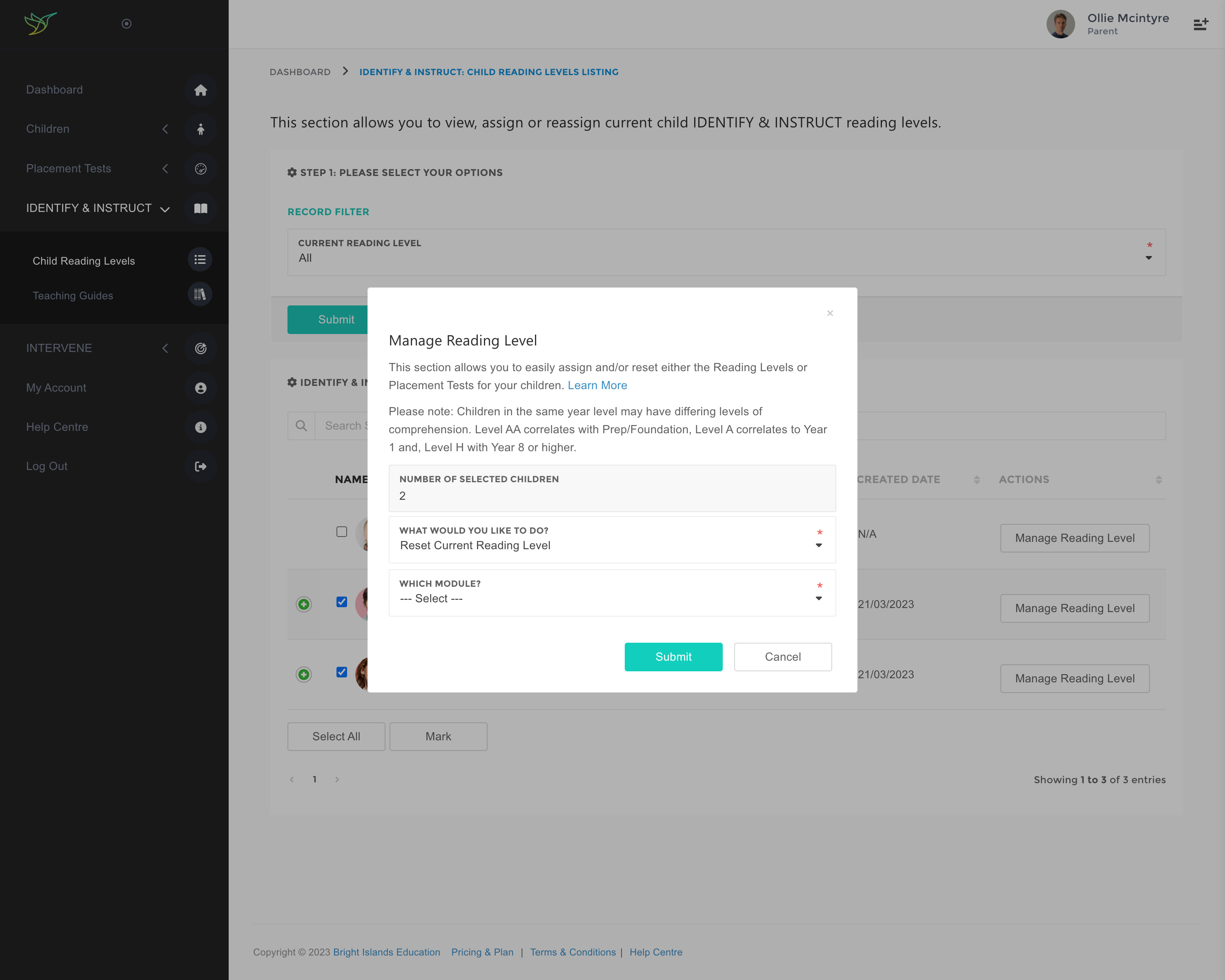
Reset IDENTIFY Module
- Reset an individual pretest or reset all pretests by choosing the Pretests 1–5 option. This applies to Benchmarks and Post Tests.
- Reset all tests found in the IDENTIFY Assessment by choosing Reset All Tests option.
- Click on the Submit button.
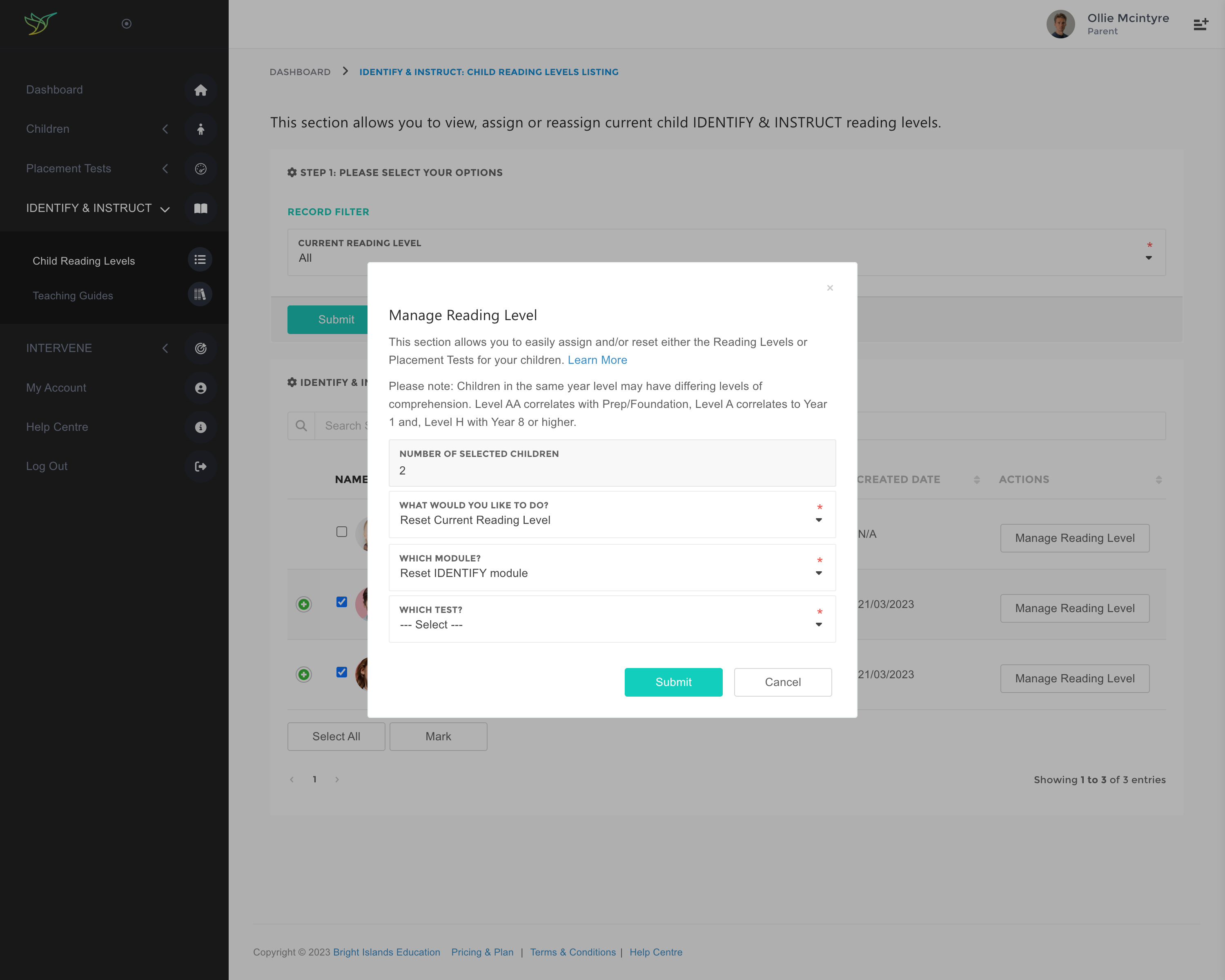
Reset INSTRUCT Module
- Reset an individual lesson, including review lessons and the final review lesson, by choosing the appropriate option in the Which Lesson? field.
- Reset all the lessons found in the INSTRUCT level by choosing the Reset All Lessons option.
- Click on the Submit button.
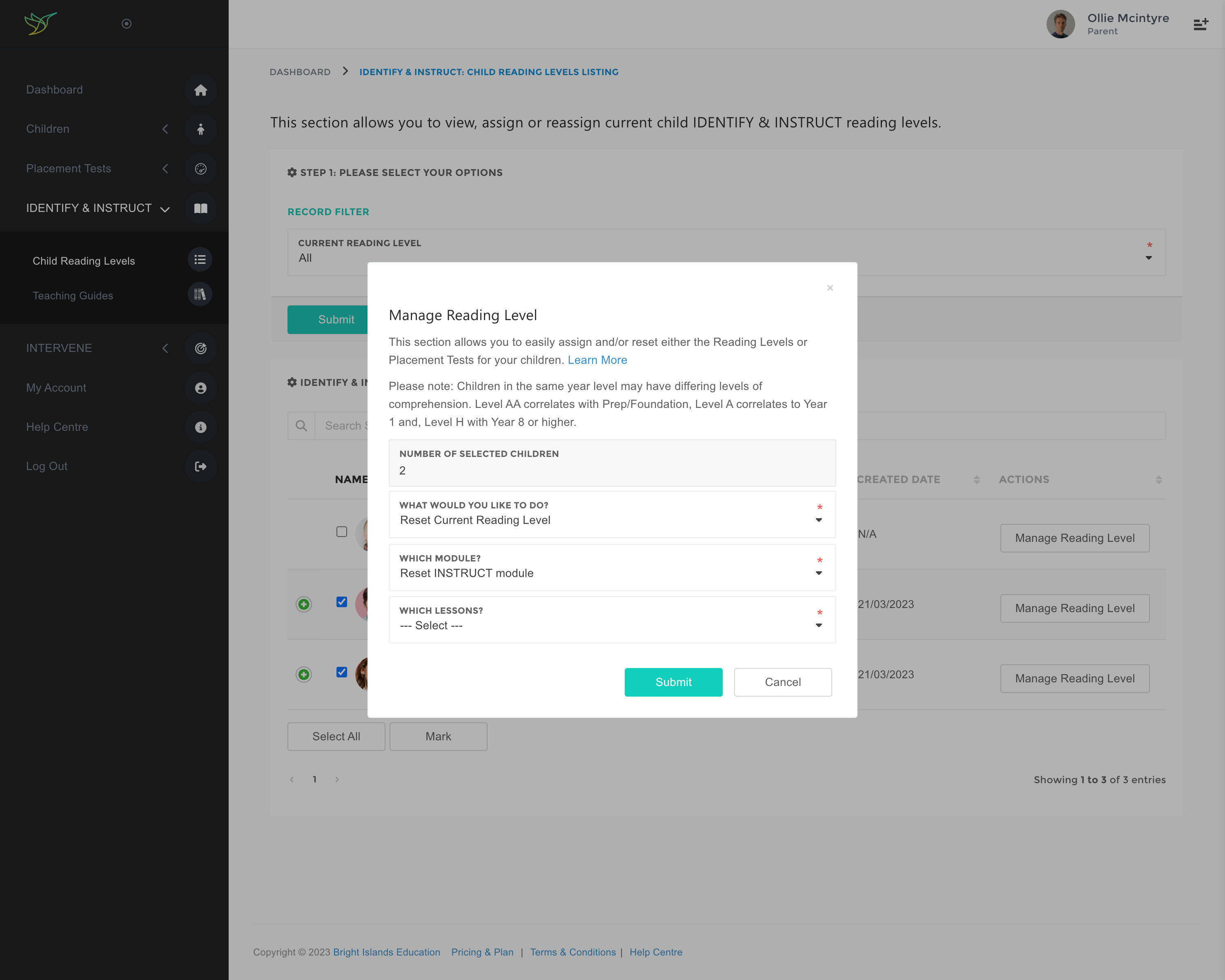
Reset both IDENTIFY & INSTRUCT
- Choose Reset IDENTIFY & INSTRUCT Modules Completely option.
- Click on the Submit button.